




Contents
Content
Adding an Image to an Existing PDF
- Open Tools Panel
- Select Content Group
- Select Edit Object
- Right Click in PDF
- Select Place Image
- Select File Type
- Select Image
- Move Image to Final Destination
- Save PDF
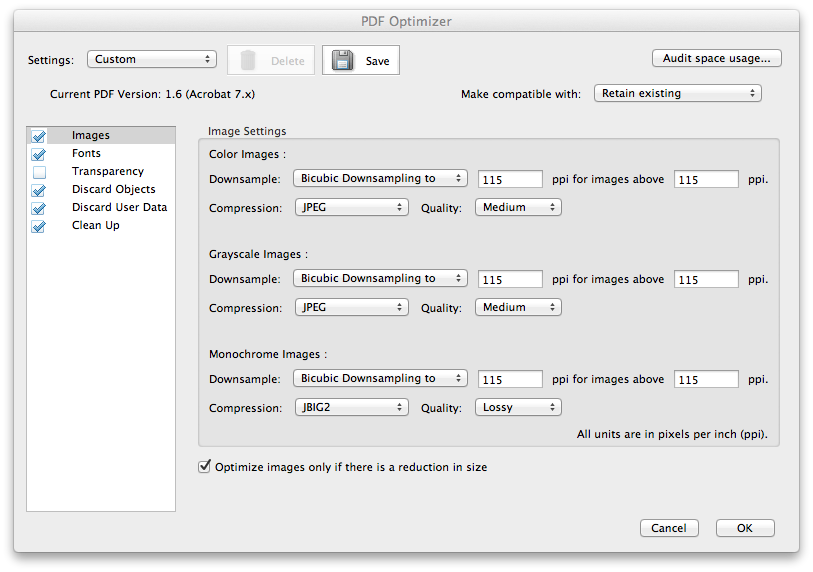
PDF Optimizer
Use the Adobe Acrobat PDF Optimizer to reduce the file size of PDF files
- To access (pre-X), go to
Advanced > PDF Optimizer - To access (X+), go to
File > Save As > Optimzed PDF... - The sample below saves the PDF at 115 ppi at Medium quality
Forms
- Go to
Forms > Add or Edit Fields - A pop-up message will appear asking if you'd like Acrobat to automatically detect fields:
- Choose
Yesif box like shapes that resemble fields appear on the document. Stop here. - Choose
Noto add custom fields in custom locations. Continue to step 3.
- Choose
- Click the
Add New Fieldmenu - Select the desired field type and drag to the appropriate location on the document
- Double click on the field to define the field's properties (name, attributes, etc)
- When finished, click the
Close From Editingbutton.
Allow Reader Users to Save Form Data
- Open the form in Adobe Acrobat Pro X or higher
- Add fillable fields
- Go to
File > Save As > Reader Extended PDF > Enable Additional Features... > Save Now - Acrobat Reader users will now be able to save form data on fillable PDF's, sign an existing signature field, and digitally sign the document anywhere on the page
Helpful URL's
| Category | Description | URL |
|---|---|---|
| Reference | Keyboard Shortcuts | http://help.adobe.com/en_US/acrobat/using/WS58a04a822e3e50102bd615109794195ff-7a... |
